
get started
Membership Management
Advertising network
Table Packages
Last Update :
Table packages are designed for events where a single purchase covers a group of attendees — banquet seating at a fundraising gala, a foursome at a golf tournament, a team at a charity sports event, a sponsored table at an industry dinner. The buyer purchases one "table" (or team, or foursome) at the listed price, and that single transaction lets them register a defined number of additional attendees at no extra cost.
The key advantage is that everyone in the group is registered as a real attendee. Their names land on the attendee list, they count toward the total attendee number, they show up in every event report, and they can be checked in individually at the door. This is what separates a table package from simply asking the buyer to type a list of names into a text field — names typed into a custom field aren't attendees, they're just text.
This article walks through the table-package feature, when to use it, and how to set up a typical event — whether it's a banquet, a golf tournament, or any other group format where one person pays and multiple people attend.
Why not just use a custom field for the extra names?
It's tempting to set up a single regular package (a Table of 8 at the full table price) and add a custom text field asking the buyer to "list the names of your 7 additional guests." That works as a low-effort approximation, but it has real downsides.
- The names aren't attendees. Your event's attendee count stays at 1 per table, no matter how many seats you've actually sold. A sold-out event of 25 tables looks like 25 registrations on every report instead of 200 attendees.
- The names don't appear on the attendee list. Admins, badge printers, and check-in staff only see the buyer. Pulling a list of who's actually attending means manually parsing free-text answers.
- No per-person tracking. You can't check anyone in individually at the door, give them their own badge, collect their own meal selection, or mark their attendance for CEU credit. Everything is collapsed into the buyer's record.
- Reports are skewed. Revenue per attendee, attendance rates, member-vs-guest splits, and any other per-attendee metric is built on the attendee count, not the seat count. Custom-field names are invisible to all of these.
Table packages solve all of this. The system creates a separate attendee record for every seat in the group, so all the standard attendee tooling (check-in, badges, custom fields, reports, exports) treats those people as first-class attendees.
When to use table packages
Use a table package when one person pays for a whole group, but each individual attendee still needs to be tracked as a real attendee — with their own check-in, their own badge, their own meal choice, dietary restrictions, shirt size, handicap, or any other per-person info.
Common scenarios:
- A fundraiser dinner where corporate sponsors buy a "Table of 10" for $2,500 and invite individual guests to fill the seats.
- A golf tournament where one captain registers a foursome and each golfer's name, handicap, and shirt size needs to be tracked separately.
- A charity sports event where a team of 5 or 10 registers as a unit but each player needs their own waiver, meal selection, and t-shirt size.
- An awards banquet where a member organization buys a table and brings staff or board members.
- A sponsorship package where a higher-tier sponsorship includes a fixed number of complimentary attendee spots.
Before you start
Table packages depend on the Table Packages feature being enabled for your organization. If you don't see a Table Package dropdown in the Miscellaneous Options section of the package editor, contact MemberLeap support to turn the feature on.
How it works
A table-package setup uses two cooperating packages:
- A Table Package: the priced purchase. The buyer (or team captain) picks this package, pays its cost once, and registers as the first attendee.
- An Additional Attendees Package: a zero-cost package the system uses for every additional seat or team slot that comes with the purchase.
When the buyer completes their initial registration, MemberLeap automatically creates additional-attendee records based on the configured size. The buyer (or anyone they share their confirmation link with) can fill in each seat's or teammate's name, contact info, and custom-field answers later. Each one is a fully-counted attendee from the moment the buyer checks out.
Setting up a table-package event
The basic recipe is the same whether you're selling banquet tables, golf foursomes, or sports teams. You set the parent package with the right "team size," then create one zero-cost package that fills the additional slots.
Step 1: Create the Table Package
- Open the Event Packages tab and click Add New Package.
- Fill in the Package Basics: a clear name (e.g. Table of 8, Golf Foursome, Team of 5), an optional description ("Includes seating for 8 attendees with full dinner" or "Includes 4 players, cart, and lunch"), and the package cost (the price for the whole group, not the per-person price).
- Scroll to the Miscellaneous Options section. In the Table Package dropdown, choose This is a Table Package.
- A Number of attendees included per table field appears below the dropdown. Enter the count: 4 for a golf foursome, 8 for a banquet table of 8, 10 for a Table of 10, etc.
- Click Save and Continue.
Step 2: Create the Additional Attendees Package
- Click Add New Package again.
- Name it something obvious like Additional Table Attendee, Additional Golfer, or Additional Team Member. Set the cost to 0.
- Optionally write a short description ("Seat included with a Table of 8 purchase" or "Player included with a Foursome purchase").
- In the Miscellaneous Options section, set the Table Package dropdown to Designated package for Additional Attendees.
- Click Save and Continue.
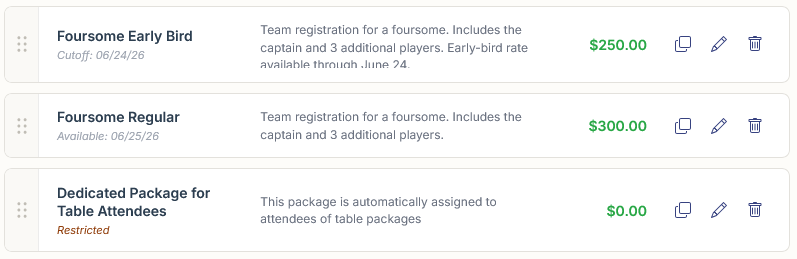
- You can only have one Additional Attendees package per event. If you set up multiple parent Table Packages (say, a Foursome alongside a Twosome, or a Table of 8 alongside a Table of 10), they all share the same Additional Attendees package for filling their slots.
Step 3: Set up custom fields for additional attendees (optional)
By default, custom fields you create on the Custom Fields tab are only shown to attendees registering on a regular package. To make a custom field appear for additional table attendees too, edit the field and check Make Available to Table Package Attendees in its options.
Typical fields you'd enable for additional attendees:
- For banquets: meal choice, dietary restrictions, name for badge, allergies.
- For golf tournaments: handicap, shirt size, club rental, cart preference.
- For team sports: jersey size, jersey number preference, position, waiver.
Things specific to the original buyer or team captain (sponsorship-level questions, table dedication notes, team name, captain contact info, etc.) should stay unchecked so they don't get asked of every additional attendee.
When a field has this checked, MemberLeap applies the package permissions from the registering attendee's own package, not the additional attendee's package. In practice that means the field shows for everyone in the group as long as the buyer's package would have shown it.
What attendees see
From the buyer's (or team captain's) perspective, the registration flow looks normal: they pick the Table Package, fill in their own attendee details, and check out. The system automatically creates the configured number of additional attendee records under their registration.
After checkout, the buyer sees additional-attendee slots in their confirmation. They (or anyone they share their confirmation link with) can fill in each slot's name and answers. Slots can also be left for later — "TBD Guest 1" through "TBD Guest 7," or "TBD Golfer 2" through "TBD Golfer 4" can be updated as the event approaches and final names are confirmed.
As an admin you can edit any attendee in the group at any time from the Attendees page. Each slot is its own row on the attendee list, with its own check-in checkbox, custom-field answers, and badge information.
Tips and gotchas
- Charge once, register many. The Table Package's cost is the total for the whole group. Each additional slot is zero-cost. Don't accidentally set the Table Package cost to the per-seat or per-player price.
- Don't add the Additional Attendees package to other workflows. Since it's zero-cost and tagged as "Additional," it's meant to only be assigned by the system when a Table Package is purchased. Picking it directly on the registration form for a standalone attendee would let someone register for free.
- Capacity counting. If you set an event-wide Attendee Limit, each slot in the group counts as an attendee against that limit, not just the buyer. A Table of 8 takes 8 spots; a Golf Foursome takes 4.
- Custom fields default to the buyer. If you don't check Make Available to Table Package Attendees on a field, only the buyer or team captain is asked. This is usually what you want for purchase-specific questions and not what you want for per-person info, so review your fields after enabling table packages.
- Multiple sizes. You can offer several Table Packages on the same event (Foursome alongside Twosome, Table of 6 alongside Table of 10) by repeating Step 1 with different sizes and prices. You still only need one Additional Attendees package shared between them.