
get started
Membership Management
Advertising network
Editing Attendees/Payments
Last Update : August 2026
Most of the editing you'll do after an event goes live happens in two places: the Attendees page for changing attendee information, and the Invoice Information page for everything related to payments. This article walks through both.
For the specific topic of refunding a payment, see Section: Refunds.
Getting to the Attendees page
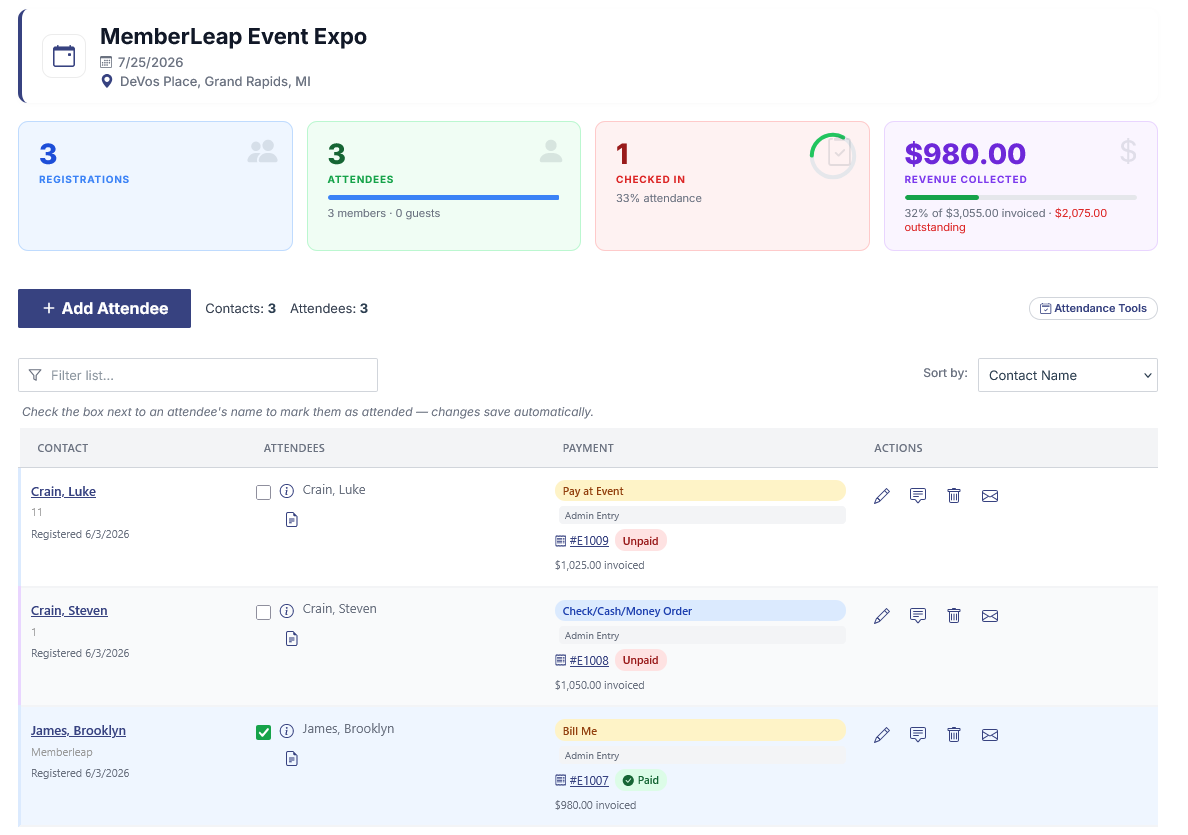
From the event list, click the Event Hub link on the event's card, then click Manage Attendees from the Attendees section of the hub. The Attendees page lists every registration for the event, grouped by the contact who registered.
Each row shows the contact and the attendees they registered, plus their payment status and a set of action icons. The list filters and sorts client-side, so typing in the filter box or changing the sort dropdown updates the visible rows instantly without a page reload.
Editing an attendee
To edit an attendee's information — their name, contact info, the package they picked, the custom-field answers they gave, anything — click the Edit icon (pencil) in the Actions column on their row. This opens the full attendee record in admin mode, with the same form attendees see during registration but with every field available (including restricted, admin-only fields).
Make whatever changes you need, scroll to the bottom, and save. The changes apply immediately. If the edit changes the invoice total (e.g. you changed the package, added a paid custom field, or applied a discount), the invoice is recalculated automatically. The attendee will see the new total the next time they look at their confirmation, and the contact's payment status on the Attendees page updates the next time the page loads.
If you need to add an entirely new attendee to a registration that already exists (a second seat at a table, an extra household member), open the existing registration in admin mode and use the add-attendee controls inside.
Other row actions
The Actions column on each contact row holds more than just Edit. From left to right:
- Edit. Opens the registration in admin mode (described above).
- Notes. Opens a small modal where you can add or update an internal note attached to the registration. Notes are admin-only — attendees never see them — and are useful for tracking things like "comp approved by board," "paid in cash at door," or "wants to sit with X."
- Void. Cancels the registration. Opens a confirmation modal so you don't void by accident. A voided registration is hidden from the public attendee list, doesn't count toward attendance metrics, and the seat is released back into the available pool. If the registration was paid, voiding does not automatically issue a refund — see Section: Refunds.
- Email. Resends the confirmation email to the contact. Use this when an attendee says they didn't get their confirmation or has lost their copy.
Per-attendee icons
Inside the Attendees column, each attendee within a contact's registration has its own small icon strip. These are per-person shortcuts, separate from the contact-level actions in the Actions column:
- Attendee summary (info icon next to the name). Opens a PDF summary of everything that attendee picked — packages, custom-field answers, payment status — in a new tab.
- Transcript. Generates a PDF transcript for the attendee (when your organization has the transcript feature enabled).
The attendance checkbox next to each attendee's name marks that attendee as checked in. Changes save automatically the moment you click; there's no separate save step.
Editing an invoice or payment
To work with invoices and payments, click the invoice number link in the Payment column on any row. This opens the
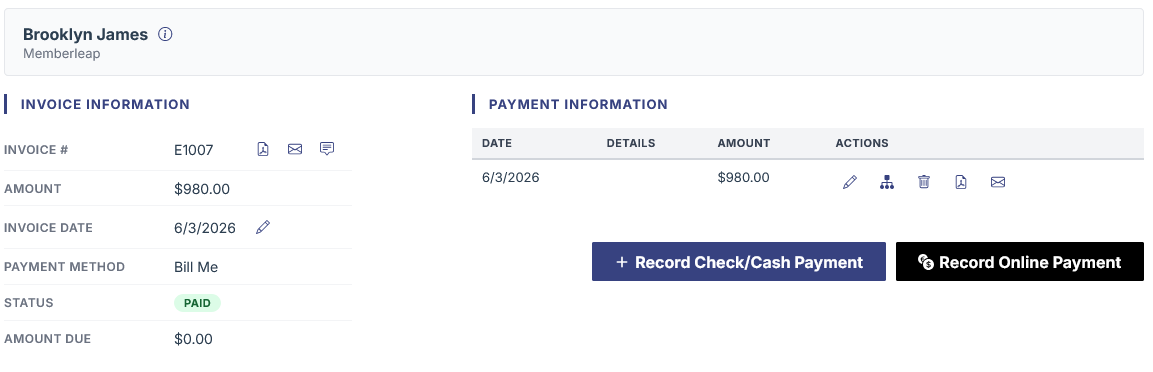
Invoice Information page for that registration. The page has two main sections side by side:
Invoice Information on the left and
Payment Information on the right.
Invoice Information
This block shows the invoice's overall state: invoice number, total amount, invoice date, payment method, status (Paid / Unpaid / Voided), and amount currently due. Several rows have small action icons on the right:
- View PDF invoice. Opens the invoice as a printable PDF in a new tab.
- Email invoice. Opens a modal where you can send the invoice (with a PDF attachment) to any email address. Useful when an attendee has lost their original confirmation or needs to send the invoice to their accounting department.
- Edit invoice note. Adds an internal note to the invoice itself, separate from the registration-level note.
- Edit invoice date. Opens a small modal to change the invoice date. Useful for backdating an invoice into a previous accounting period.
Payment Information
This block lists every payment recorded against the invoice. Each row shows the payment date, amount, method, and a small set of action icons:
- Edit payment. Opens the payment editor in a modal. Lets you change the payment date, amount, method, reference number (check #, transaction ID), and admin note.
- Allocate to GL accounts (when extended GL is enabled). Opens the GL allocation editor on a separate page. Use this when the payment needs to be split across multiple accounting buckets.
- Void payment. Marks the payment as voided. Opens a confirmation modal. The payment stays on the record for audit purposes but no longer counts toward the invoice's paid amount — the invoice flips back to Unpaid (or to its remaining balance).
- View receipt. Opens a PDF receipt for the individual payment in a new tab.
- Send receipt email. Opens a modal that generates the PDF receipt and emails it to whatever address you specify, in a single action.
Recording a new payment
Below the payment list, two buttons let you record additional payments against the invoice:
- Record Check/Cash Payment. Opens the same modal as the Edit Payment action but in "new payment" mode. Use this for any offline payment your organization needs to manually record: a check that came in the mail, a cash payment taken at the door, a wire transfer, an in-kind sponsorship credit.
- Record Online Payment. Sends you to the gateway picker where you can charge a credit card, ACH, or any other online method your organization has enabled. Useful when an attendee wants to pay over the phone or update a previously declined card.
Both options can be used on the same invoice. You can record a partial check payment and then process the remainder online, or split a payment across multiple checks across multiple dates. The invoice's amount-due field updates after each payment.
What changes when you void or edit
Edits, voids, and refunds all leave audit-trail entries that you can review later from the Event Hub or the audit log. Nothing is silently deleted — voided payments stay on the invoice as voided rows, voided registrations stay in the data with a voided status, and edits to attendee records show up in the audit log with both the before and after values.
This means you can correct mistakes confidently. The data history is preserved no matter what edits you make, and you can always pull a report showing what changed and when.