
get started
Membership Management
Advertising network
Members vs Non-Members
Last Update :
Packages are the pricing tiers attendees pick when they register. Every event needs at least one package, even if it's free. Most events have a few: Member, Non-Member, Early Bird, VIP, Spouse, Student, and so on. Each package has its own cost, optional capacity limit, optional date window, optional eligibility rules, and (when applicable) its own confirmation verbiage and certifications.
One of the most common pricing patterns in MemberLeap is showing your members a different price than non-members — sometimes a discount, sometimes a tier that only members can pick at all. This is handled at the package level: you create separate packages for each audience and use the Package Permissions setting to control who sees what.
This article explains how MemberLeap decides whether someone is a member, walks through the Package Permissions options, and gives a recipe for the most common setup (a Member package and a Non-Member package side by side).
How MemberLeap knows who's a member
The system identifies members by their login state on the registration page.
- If the attendee is logged in as a member of your organization when they start registering, MemberLeap treats them as a member. Member-only packages appear, and any member-type / certification filters on those packages apply based on their member record.
- If the attendee is not logged in, MemberLeap treats them as a guest. Member-only packages are hidden, and guests-only packages are shown.
Members are typically prompted to log in at the top of the registration page if they have an account. They can also choose to register as a guest if they don't want to log in — in which case they see the guest-facing options. The login state is what drives every "members vs non-members" decision throughout registration.
The Package Permissions setting
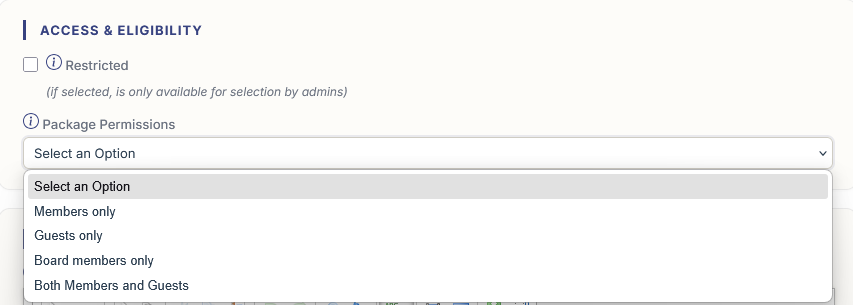
Inside the package editor (Event Packages tab → Edit a package), the Access & Eligibility section has a Package Permissions dropdown. Pick one of four options:
- Both Members and Guests. The default. The package appears for everyone, regardless of login state. Use this for packages that are open to anyone and don't depend on membership status.
- Members only. Only logged-in members can see and pick the package. Guests don't see it on the form at all. When you pick this option, an additional Restrict Package By block slides into view below the dropdown with finer eligibility controls (see the next section).
- Guests only. Only attendees who are not logged in as members can pick the package. Members don't see it. Useful when you have a "non-member rate" you don't want existing members to abuse.
- Board members only. Restricts the package to members with a board role. Hidden from everyone else.
Restricting members further: the Restrict Package By block
When Package Permissions is set to Members only, MemberLeap surfaces a Restrict Package By block below the dropdown. This block lets you narrow eligibility beyond "any member" to specific subsets of your membership. Each row is a multi-select. Leave any row blank to skip that filter.
- Member Type. Limit the package to one or more member-type codes. Useful when you have packages priced specifically for a tier — Standard Members get the $50 package, Premium Members get the $25 package, etc.
- Certification. Require the attendee to currently hold one of the selected certifications. Only appears when your organization has the LMS Certifications feature enabled and at least one active certification on file. Use this when a session is open only to people who've completed prerequisite training.
- Membership Add-On. Require the attendee to currently have an active paid add-on. Only appears when your organization has the add-on feature enabled and at least one active add-on on file. Use this for "platinum-tier" benefits where a paid add-on unlocks specific event access.
- Other Package. Make this package unavailable until someone in the registration group has already selected one of the chosen "parent" packages. Useful for add-on / dependent packages — for example, a VIP Reception package that's only available when at least one person in the group has bought the main Conference Registration.
All filters are additive: the attendee has to pass every non-blank row to be eligible. If you fill in Member Type with "Standard, Premium" and Certification with "CPR Certified," only Standard or Premium members who also hold CPR Certification will see the package.
A typical setup: Member rate and Non-Member rate
The most common pattern is offering the same content at two prices: a discounted rate for members, a higher rate for non-members. The recipe:
- Open the Event Packages tab and click Add New Package.
- Create the Member package: name it "Member Registration" (or similar), set the discounted cost, and set Package Permissions to Members only. Save and close.
- Click Add New Package again.
- Create the Non-Member package: name it "Non-Member Registration," set the higher cost, and set Package Permissions to Guests only. Save and close.
That's it. Logged-in members will see only the Member Registration package on the form. Guests will see only the Non-Member Registration package. Each group only sees the price that applies to them, and there's no risk of a member accidentally picking the higher rate or a non-member sneaking in at the member rate.
Forcing the whole event to be members-only
If every package on an event should be members-only (the entire event is gated to your membership), there's a simpler shortcut than setting permissions on each package individually. Open the Advanced Options tab and find the Members Only Registration setting in the Access Restrictions section. When that's on, non-members can't even get to the registration form — they're prompted to log in or join first.
See Section: Configuration for the full list of access-restriction options.
What admins see
When you (as an admin) register someone through the admin-facing Manage Attendees flow, you see every package regardless of permissions, including restricted ones. This is by design — admins frequently need to enter registrations on someone's behalf or assign a member to a package that wouldn't normally appear for them. The permission filters only run for the