
get started
Membership Management
Advertising network
Member Fields
Last Update :
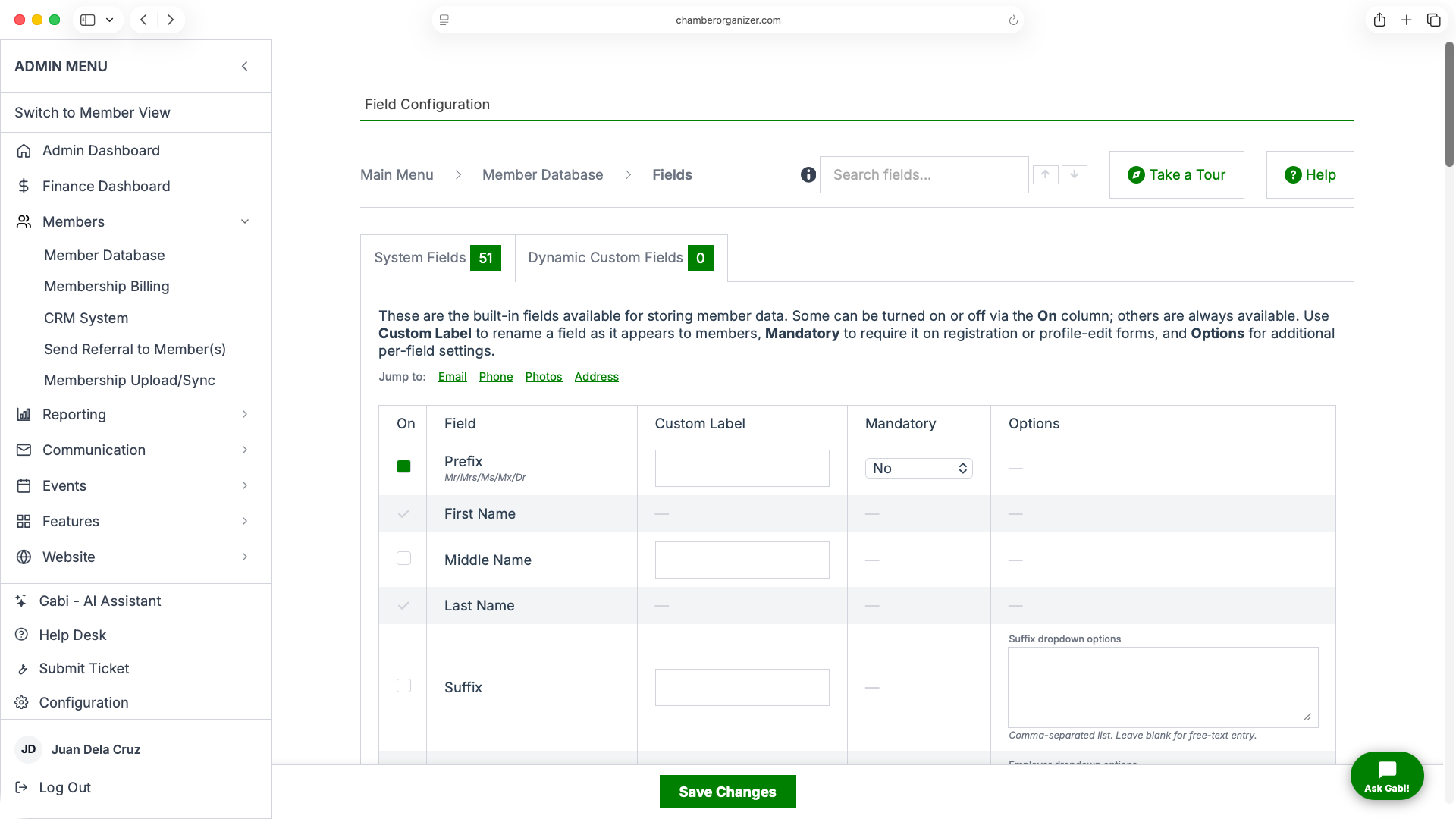
The Member Database can utilize a large number of fields. As of 2.0, nearly all of them are configured from a single screen: open the Member Database and click Fields (Member Database > Fields). This replaces the older General Configuration and Custom Fields and Field Labels screens. If any field appears to be missing, please let us know.
The Field Configuration Screen
Fields are organized into tabs across the top of the page. The number badge on each tab shows how many fields it contains:
- System Fields – The built-in fields (name, email, phone, address, photos, and more).
- Legacy Custom Fields – Pre-defined custom field slots carried over from the older system. This tab appears only when at least one legacy field is in use.
- Dynamic Custom Fields – Modern, fully configurable custom fields. This tab appears when the feature is enabled for your organization.
All tabs save together — make every change you need across the tabs, then click Save Changes in the bar at the bottom of the page.
Columns
In the System Fields tab, each field has up to five columns:
- On – Turns a field on or off. Fields that show a check mark instead of a checkbox (for example, First Name and Last Name) are always enabled and cannot be disabled.
- Field – The built-in name of the field.
- Custom Label – Lets you rename the field as it appears to your members. Leave blank to use the default name.
- Mandatory – Sets whether the field is required during New Member Registration, on Member Profile Change, or both.
- Options – Additional per-field settings, such as dropdown choices, where the field is hidden, or admin-only visibility.
Finding and Touring Fields
Use the search box in the top bar to find any field, label, option, or value across all three tabs at once. Type at least two characters; matches are highlighted, and you can step through them with the ↑ / ↓ buttons or Enter / Shift+Enter. Click Take a Tour for a guided walkthrough of the page.
Modes of Operation
The Member Database operates in two primary modes, which determine how certain fields display and behave:
- Individuals Mode – Used when members are individuals (for example, John Smith). Fields such as Date of Birth are available only in this mode.
- Business Mode – Used when members are organizations (for example, Acme Manufacturing). The Employer field serves as the Business Name.
System Fields
- Name
Includes First Name and Last Name (always enabled). Optional name fields that can be turned on in the On column include Prefix (Mr/Mrs/Ms/Mx/Dr), Middle Name, and Suffix. The Suffix field can present a fixed dropdown list (set a comma-separated list under Options) or accept free-text entry. - Employer / Business Name & Position
Records a member’s employer and position. In Business Mode the Employer field serves as the Business Name. Under Options you can supply a comma-separated dropdown of employers and restrict that dropdown to specific member types. The Position field can be hidden on selected forms (registration, profile edit, admin edit, or combinations).
- Gender, Categories & Profile
- Gender – Optional; enable in the On column.
- Categories – Used primarily in Business Mode to classify members by business type (for example, Auto Glass, Mortgage Originator). These categories can be searched in the member directory.
- Profile – A profile/bio field that can use a rich-text editor and can be hidden on selected forms.
- Email – The primary address where notifications and messages are sent.
- Secondary Email – An optional additional email address.
- Billing Email – Where billing correspondence is sent. Can run as a single billing email or as a primary + secondary pair, and can be made admin-only.
- Helper Email – A secondary address for username/password info; admin-only by default, optionally exposed on Member Profile Edit.
- Phone
- Photos
- Address
- Alternate Contact & Alternate Address
- Other Built-in Fields
Legacy Custom Fields
Legacy Custom Fields
These are pre-defined custom field slots carried over from the legacy system. A slot is enabled by entering a Custom Label; clearing the label removes the field from your member database (existing data on members will be lost). Only slots that have a label are shown. Where Dynamic Custom Fields are available, we recommend using them instead for any new fields.
The available legacy field types are:
- Text Fields – Single-line text.
- Indicator Fields – Yes/No checkbox.
- Selection Fields – Drop-down with one selectable option (options edited per field).
- Multi-Selection Fields – Drop-down allowing multiple selections (options edited per field).
- Multiline Text Fields – Larger free-text field.
- Date Fields – Date entry.
- Admin Text / Selection / Indicator / Multiline Fields – The same field types, but visible only to admin-level users.
Dynamic Custom Fields
- Dynamic Custom Fields
Dynamic Custom Fields are the modern way to add custom data points. They support categories, custom sorting, per-member-type restrictions, required flags, and a wider range of field types than legacy slots. They can also be included in reports.
From the Dynamic Custom Fields tab you can Add Field, Manage & Reorder fields, and Manage Categories. Each existing field can be edited, deleted, or (for selection types) have its options modified.
Available field types: - Indicator – Checkbox (checked or unchecked)
- Number – Integer (increments of 1)
- Number – Decimal (increments of 0.01)
- Short Text – Short text entry
- Long Text – Multi-line text entry
- Select – Drop-down with one selectable option
- Multi-Select – Drop-down with multiple selections
- Date – Date field (MM/DD/YYYY format)
- Caption – Static text label