
get started
Membership Management
Advertising network
Discount Codes
Last Update : August 2026
Discount codes let you offer reduced pricing to specific groups, time-limited promotions, or invite-only registration paths. Attendees enter the code at registration time and the system automatically applies the configured discount to their invoice. You can offer percent-off or flat-dollar discounts, restrict codes to specific packages, member types, or even attendees who've registered for prior events.
This article walks through enabling discount codes, creating them, configuring how the discount applies, and the restrictions you can layer on each code.
Enabling discount codes
Discount codes are off by default and need to be enabled per event before you can create any.
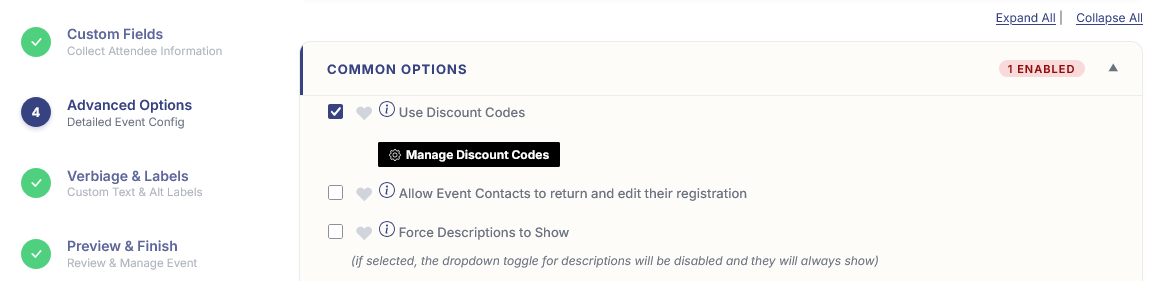
- From the configuration editor, open the Advanced Options tab.
- Expand the Common Options section card.
- Check the Use Discount Codes checkbox. A Manage Discount Codes button slides into view below it.
- Click Manage Discount Codes to open the codes editor in a slide-out panel.
If you turn off Use Discount Codes later, existing codes stay in the database but stop applying on the registration form. Turning it back on restores them — you don't lose your codes by toggling the feature.
The discount codes list
The Manage Discount Codes panel lists every code defined on the event. Each row shows:
- The code itself (the string attendees type to redeem it).
- A discount tag showing the value (e.g. "25% off" or "$50 off").
- Meta tags for any usage limits, expiration date, member-only flag, or prerequisite-event flag.
- Edit and Delete action icons on the right.
Use Add a Code at the bottom of the list to create a new code. Clicking either Add or Edit opens the code editor in a nested slide-out panel.
The code editor
The code editor is organized into three sections: Code Basics, Usage Limits & Expiration, and Access & Eligibility.
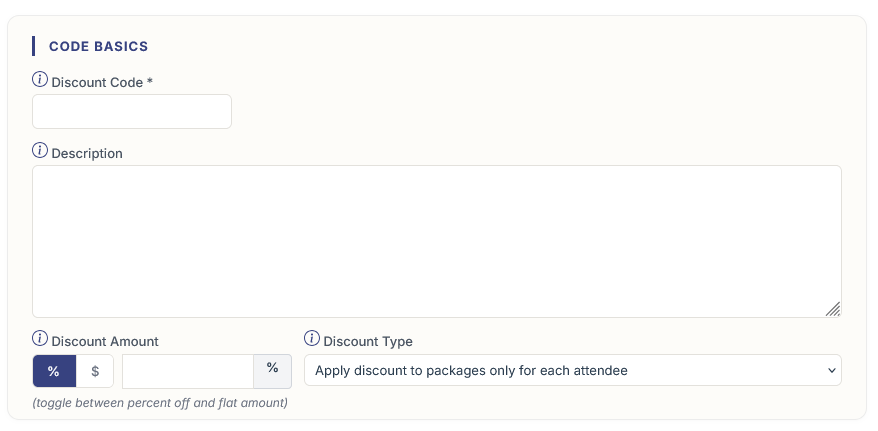
Code Basics
- Discount Code. The string attendees type at registration. Case-insensitive, alphanumeric is typical. Once a code has been used in a registration, the code text becomes read-only — you can edit everything else about the code, but not its actual text, to avoid breaking historical references.
- Description. Internal description for your admin team. Not shown to attendees.
- Discount Amount. A pill toggle lets you switch between % (percent off) and the currency symbol (flat amount off), with the value entered next to it. Enter the percent or dollar amount the code takes off.
- Discount Type. Controls what the discount applies to:
- Apply discount to packages only for each attendee. The discount comes off the package cost only. Custom-field charges, booth fees, and donations aren't affected. This is the most common option and supports restricting to specific packages (see below).
- Apply discount to each attendee subtotal. The discount comes off each individual attendee's total — package plus custom fields plus add-ons. The discount applies to every attendee in the registration group separately.
- Apply discount to overall invoice total. The discount comes off the final invoice total just once, regardless of how many attendees are in the group. Use this for "$100 off your registration" promotions where the discount applies to the booking as a whole.
Usage Limits & Expiration
Cap how often the code can be redeemed and when it stops working:
- Max Uses — Transactions. Cap how many separate registrations can use this code. A registration counts as one transaction regardless of how many attendees are in it. Leave blank or 0 for unlimited.
- Max Uses — Attendees. Cap how many individual attendees can use this code across all transactions. Useful when the discount is "first 100 attendees" rather than "first 100 transactions."
- Expiration Date. The date after which the code no longer applies. Whether the cutoff happens at start-of-day or end-of-day depends on an organization-level setting that's noted in the field's help text.
- Minimum Attendee Threshold. Apply the code only after this many attendees have been added to the registration. Useful for "group rate — 5 or more" promotions.
- Maximum Attendee Threshold. Apply the code only to up to this many attendees in a registration. Useful when you want the discount capped (e.g. "first 3 attendees per registration get the discount, anyone beyond that pays full price").
- Restrict Discount Code to Specific Event Packages. A multi-select of packages. Only shown when the discount type is Apply discount to packages only. Leave blank to apply to all packages, or pick specific packages to limit the code to only certain tiers. Useful when a code should only discount the conference package but not VIP add-ons.
Access & Eligibility
Control who can use the code:
- Member / Guest / Both. Restrict the code by attendee type. Both Members and Guests (the default) means anyone can use it. Members only requires the attendee to be logged in as a member. Guests only excludes members entirely. Only available when your organization has the member/guest access-restriction features enabled.
- Restrict to Member Type(s). A multi-select that appears when you've picked Members only. Leave blank to allow any member type, or pick specific types to restrict the code further (e.g. only Premium members get the code).
- Apply Parent Member Type to Cross-Referenced Members. When checked, cross-referenced members whose parent member matches the member-type rules can also use the code. Useful for corporate memberships where the parent organization holds the member-type status.
- Unlock Member Permissions with Code. When checked, attendees who enter this code are treated as full members for permission checks (member-only packages, member pricing). Use this for promo codes you give to non-members as a one-time member-access pass.
- Only Available if Member has Registered for Other Specified Events. A prerequisite check. When checked, you pick one or more prior events and an ANY / ALL rule. The code only applies if the registrant has previously registered for ANY (or ALL) of the chosen events. Requires the attendee account to be matched to a member account — use the Member Match Tool on the reporting dashboard to handle that matching first.
Gating packages by discount code
Separately from the discount itself, you can use a code as an access gate for a package. On any package, the Discount-code gate setting (Access & Eligibility section of the package editor) lets you require that one of the selected codes is entered before the package even appears on the registration form. This is useful for invite-only or pre-sale tiers where you want a package hidden until the attendee proves they have an invitation.
The discount-code gate is independent of whether the code also discounts anything. A code can gate a package and apply a discount, or just gate without a discount, or apply a discount without gating anything.
See Section: Packages for the package-side configuration.
How attendees use codes
On the registration form, a Discount Code field appears (the label is configurable through the Verbiage tab as Promo Code, Coupon, or whatever your organization prefers). The attendee types the code and the registration form revalidates: ineligible packages disappear, eligible-but-gated packages appear, and the invoice total recalculates with the discount applied.
If a code is entered that doesn't pass its restrictions (wrong member type, prerequisite events not met, expired, all uses consumed), the form shows an error and the discount doesn't apply.
Reporting on discount code usage
The Reporting Dashboard's Attendees tab includes a Contact/Transaction Report with a discount-users-only filter. The All-Event Reporting dashboard has the same report at the cross-event level. Both let you pull a list of every attendee who used a discount code, segmented by code, for any date range.
This is useful for measuring promo effectiveness, reconciling sponsored ticket campaigns, or auditing comp tracking.