
get started
Membership Management
Advertising network
Mapping QB Items to MMS G/L Accounts
Last Update : August 2026
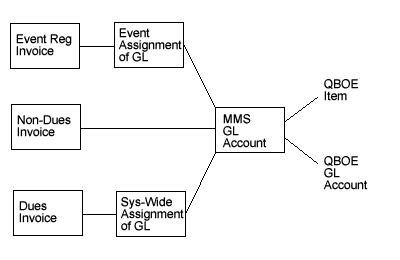
In order to send transactions from the MMS over to QuickBooks, you first need to teach the two systems how to talk to each other. Most of this will occur by assigning QuickBooks Items (Products/Services) to MMS G/L Accounts, and then assigning the MMS G/L Accounts to transactions.
At a minimum, you will probably need 2 QuickBooks Items:
- Member Dues
- Event Registrations
However, you can expand these into subcategories:
1.Member Dues
- New Member Dues
- Renewals
- Credits
2.Event Registrations
- You can create a separate item for each Event that you hold.
3.Online Store.
Whether you decide to lump all of your transactions together into two or three QuickBooks Items or to keep them separate is up to you and will depend upon your organization's accounting needs. You may want to consult a professional accountant to determine the best way to organize your transactions in QuickBooks.
Mapping QuickBooks Items (Products/Services) to MMS G/L Accounts
You will need to be logged in to the MMS as an admin to do the following:
1. Go into the "Membership Billing" menu.
2. Under the "Data Export" subheading, click the "Edit General Ledger Accounts" link.
3. If you do not see the GL account you need in the list on this page, click the "Add New GL Account" link at the bottom of this page.
4. Select the QB Item that you want to send transactions to from the "QB Item" drop-down. Type in a name for that item in the "Description" field.
- We recommend typing in the name of the QB Item for the Description, so that it appears the same in both systems. You can give it a different description, however.
- The "Account Number" field is optional. If you do use it, you must enter a number.
5. Click the "Submit" button.
You have now mapped a QuickBooks Item to an MMS G/L Account. You will need to repeat this process for any additional items to which you want to map MMS transactions. (e.g., separate event registrations, etc.)
Mapping MMS Transactions to MMS G/L Accounts
Now that you've mapped MMS G/L accounts to QuickBooks Items, you'll need to tell the MMS which transactions go to which G/L accounts. This can be broken down into three areas: member billing transactions, event registration transactions, and online store transactions.
Member Billing (dues):
This is generally done during the initial QuickBooks connection; you should not need to do it more than once. From the Edit General Ledger Accounts page:
- Near the top, you will see a link to "Select GL Accounts for Membership Invoices". Click this.
- In the dropdown menu for "Gen Ledger Account - New Members Invoices:", select the G/L account that you set up for new members' dues. (This might be a general dues G/L account, depending on your accounting preferences.)
- In the dropdown menu for "Gen Ledger Account - Renewal Invoices:", select the G/L account that you set up for renewal dues. (Again, this might be a general dues G/L account, depending on your accounting preferences.)
- If you have set up a separate G/L Account for credits, select this on the dropdown for "Gen Ledger Account - Credits". (This is optional.)
This will map all of your dues invoices to MMS G/L accounts.
Note: You may have noticed a dropdown for Gen Ledger Account - Donations/Wishlist. We are currently unable to map transactions from the Donations/Wishlist module to QuickBooks. If this is a feature you would like to add, please submit a support ticket for a customization quote.
Member Billing (nondues):
Coming Soon!
Event Registration:
You will need to map transactions to G/L accounts for each Event Registration separately. To do this:
- From the Main Menu, under Event Management, click the "Event Registration" link.
- Click the "change" link next to the event whose transactions you want to map to QuickBooks.
- About one third of the way from the bottom of this page, you will see a dropdown for General Ledger Account. Select the G/L account that you created to send transactions for this event to.
- Click the "Continue >>" button at the bottom of the page.
All transactions for this event will now be mapped to the G/L account that you selected.
Note: If you do not want transactions for a particular event to sync over to QuickBooks, you can check the "Suppress QB Sync" box that appears under the General Ledger Account dropdown. You will still need to select a General Ledger Account for the sync to work, so you might want to create a "Miscellaneous" one with no QB Item selected on the Edit General Ledger Accounts page for these kinds of events.
Online Store:
Coming Soon!