
get started
Membership Management
Advertising network
QuickBooks Online Interface
Last Update : August 2026
Many of our clients use QuickBooks Online to manage their organization's finances. To help cut down on your manual labor, we have an interface available to export transactions from Member Billing, Event Registration, and the Online Store to your QuickBooks Online Company file.
Brief overview of what can be exported to QuickBooks:
Member Billing
- Members show up in QuickBooks as Customers.
- Member dues show up in QuickBooks as Products/Services.
- You can create separate Products/Services for each Member Plan.
- You can also assign Classes to each Member Plan.
- Member dues transactions can be exported as Invoices/Payments, or as Sales Receipts.
Event Registration
- Event Contacts (the primary registrant) show up in QuickBooks as Customers.
- Event Contacts show up as separate customers from members, and are distinguished by an '(EV)' at the end of their name. (For example, member record: "John Smith", event contact record: "John Smith (EV)".)
- You can create a separate Product/Service for each event.
- Event registration transactions can be exported as Invoices/Payments, or as Sales Receipts.
Online Store
- Store Customers show up in QuickBooks as Customers.
- You can create separate Products/Services for each product in the store.
- You can also assign Classes to each product in the store.
- Online store transactions currently can only be exported as Invoices/Payments.
Setting up the Interface
One of our staff members will work with you to set up the interface. The setup process typically takes 4-6 hours over the course of 1-2 screenshares, depending on the complexity of your data.
During the first part of the setup process:
1. We will establish a connection between the MMS and QuickBooks.
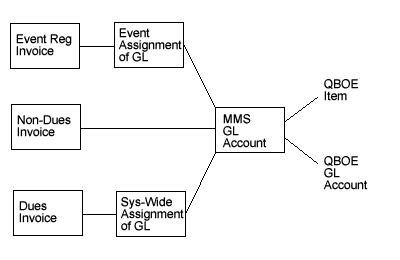
2. We will show you how to map Products/Services in QuickBooks to G/L Accounts in the MMS.
- We will also show you how to assign those G/L Accounts to various transactions.
3. If you are using Classes in QuickBooks, we will show you how to map those to corresponding Classes in the MMS.
- We will also show you how to assign those Classes to various transactions.
4. We will show you how to map Member records in the MMS to existing Customer records in QuickBooks.
5. We will determine which transactions in the MMS, if any, should not be exported to QuickBooks. (If you have been using one or both systems for a long time, we want to make sure we do not create duplicate records in QuickBooks.
At the end of this screenshare, we will have you finish the mappings in items 1-3, while one of our staff members will mark the transactions that were identified in 5 to not export.
Once you have finished these mappings, we will do another screenshare to show you how to manage which transactions will be exported, and run an initial export. After that, you will be able to export transactions as often as you like.
Getting Started
If you currently use QuickBooks Online and would like to integrate it with the MMS, please contact Tech Support to find out the current setup and monthly fees.
If you do not currently use QuickBooks, but are considering it, we would recommend that you consult with your accountant or
Intuit to determine which version is best for you. Currently, we only have interfaces for QuickBooks Desktop for PC, 2015 and later; and QuickBooks Online.