
get started
Membership Management
Advertising network
Event Registration Messages
Last Update : August 2026
The Messages feature lets you send email to attendees of a specific event. Each message can target every attendee, a slice of attendees based on what they signed up for (specific packages, custom-field picks, or session selections), or a manual list of email addresses. Messages can be sent immediately or scheduled for later. The system tracks delivery status, bounces, and per-recipient open/send activity.
Use this for event-specific communication: changes to the agenda, reminders to upload materials, weather-related schedule changes, "don't forget your badge" the morning of, anything tied to a particular event. For non-event-specific broadcasts that cover your whole membership, use the regular Broadcast feature instead.
Getting to Messages
From the event list, click the Event Hub link on an event's card, then click Messages from the Communications section of the hub.
The messages list
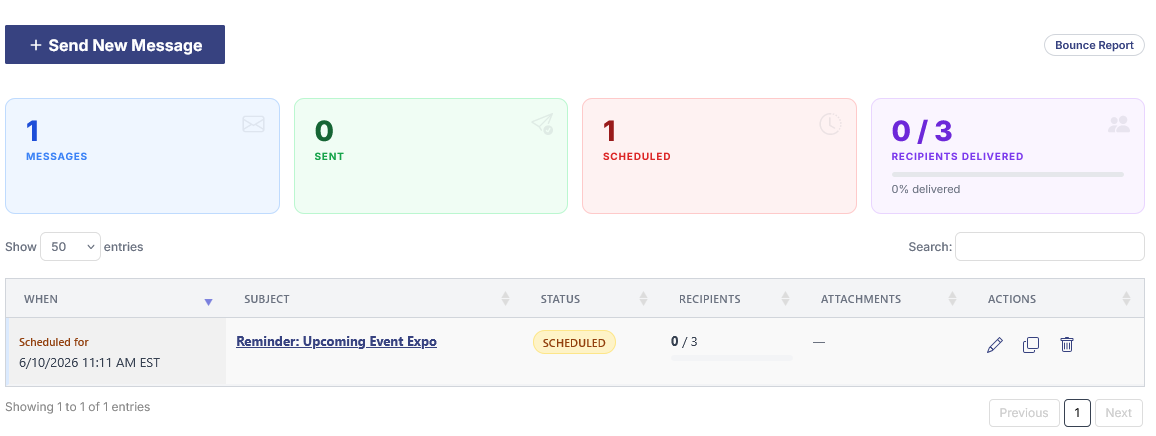
The main Messages page shows everything you've created for this event. The top of the page has two action items and a metrics bar.
- Send New Message. Creates a new message and opens the message editor.
- Bounce Report (right side). Opens a list of bounced and undeliverable email addresses across all messages on this event. Useful for spotting attendees whose email address needs to be updated, recovering messages that weren't received, and tracking your domain's deliverability health.
The metrics bar shows totals for the event: Messages (total drafted), Sent, Scheduled, and Recipients Delivered (a count with a progress bar showing what percentage of total recipients have actually received their copy).
Below the metrics is the message list itself. Each row shows:
- When. The send date for sent messages, the scheduled date for future ones, or "Not sent" for drafts.
- Subject. The message subject line, clickable to open the message in the editor.
- Status. A pill labeled Sent, Scheduled, or Draft.
- Recipients. A "delivered / total" count with a progress bar.
- Attachments. The number of files attached to the message.
- Actions. Edit, Copy, and Delete icons.
Creating a message
Click Send New Message to start a new message. The message editor opens with three tabs in the sidebar that walk through the message lifecycle.
Compose Message
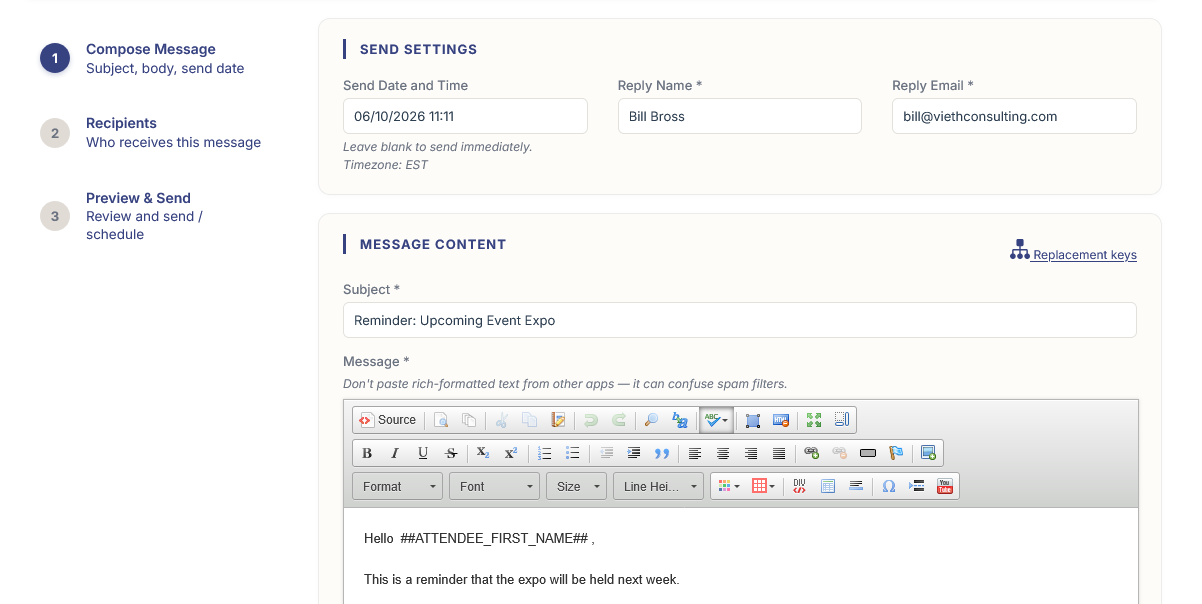
The first tab covers what the message says:
- Subject. The email subject line. Keep it short and recognizable — recipients should immediately know what event the message is about.
- Message body. A rich-text editor for the message itself. Supports bold, italics, lists, links, images, and full HTML for organizations that want to send branded campaigns.
- From address. Defaults to your organization's standard from-address. You can override it per message when you need replies to go to a specific staffer.
- Reply-to address. The address that gets replies if a recipient hits Reply on the email. Useful when you want sends to come from a no-reply address but replies to go to a real inbox.
- Send date. When the message should go out. Leave blank to send immediately when you hit Send on the Preview tab; set a future date and time to schedule it. Messages scheduled for the future are processed automatically by MemberLeap's send queue at the configured time.
Use the Attachments button to attach files. PDFs and images are most common. There's no individual file size limit listed in the editor, but very large attachments can slow delivery and may bounce on recipient mail servers with strict limits.
Recipients
The second tab picks who the message goes to. MemberLeap supports several recipient sources, and you can combine them in a single message.
- All event attendees. Send to every individual attendee on the event who has an email address on file, including additional attendees in group registrations (banquet tables, golf foursomes, etc.).
- By package. Send only to attendees who picked one or more specific packages. Useful for package-specific updates ("VIP reception is moving to the rooftop").
- By custom field selection. Send only to attendees who picked specific options on a selection-type custom field. Useful for session-specific messages ("everyone in the Tuesday morning workshop, materials uploaded here").
- Manual list. Paste or type a list of email addresses. Use this for messages to organizers, sponsors, or other parties who aren't in the registration system.
You can add multiple recipient groups to the same message. Each group adds its members to the send list; if a person matches multiple groups they still only get one copy of the email (the system deduplicates).
After saving, the page shows you the total recipient count so you can sanity-check the audience before moving on.
Preview & Send
The third tab shows the final email as it will appear in an inbox, with the actual subject, body, and merged content. Below the preview, the Send button commits the message:
- If no send date is set, the message is sent immediately. The page updates to "Sent" status once the send queue completes (usually within a minute or two for normal-sized lists).
- If a future send date is set, the message is marked as Scheduled. It stays editable until that date arrives, then sends automatically.
Scheduled messages can still be edited or canceled before the send date. Once a message has been sent, the subject, body, and recipient list are locked — you can still copy it to make a new message, but the original record is preserved for audit and reporting.
Editing, copying, and deleting messages
From the messages list, each row has three action icons:
- Edit. Opens the message in the editor. Drafts and scheduled messages are fully editable. Sent messages open in read-only mode — you can review what was sent but not change it.
- Copy. Opens a confirmation modal. On confirm, a new draft is created with the same subject, body, attachments, and recipient configuration. Useful for repeating recurring messages (weekly reminders, year-over-year templates).
- Delete. Opens a confirmation modal. Deletes the message and its recipient configuration. Sent messages can be deleted from the list, but the underlying send-log entries are preserved for audit.
Bounce tracking
The Bounce Report link at the top of the messages list shows every recipient whose email bounced or returned a delivery failure across any message on this event. Each row shows the recipient's email, the bounce reason (when the upstream mail server provides one), the message it bounced from, and the date.
Use this report to:
- Identify attendees whose email address is wrong or out of date so you can update their record before sending again.
- Spot patterns — if a lot of mail to one domain is bouncing, that domain may have rate limits or spam filters affecting your sends.
- Clean up your active recipient lists by retiring addresses that have failed multiple times.
Tips and gotchas
- Test sends. When you're trying a new template or format, copy the message and change the recipients to a manual list of just your own email address. Send that copy, check it in your inbox, then come back and update the original to send to the real audience.
- Scheduled messages survive across sessions. Once scheduled, a message will send at the configured time even if you log out, close your browser, or step away. You don't need to keep MemberLeap open for the send to happen.
- Use attachments sparingly. Large attachments slow sends and increase the chance of bounces. For files larger than a few MB, host them on your website and link to them in the message body instead.