
get started
Membership Management
Advertising network
Adding a Marketplace Item
Last Update :
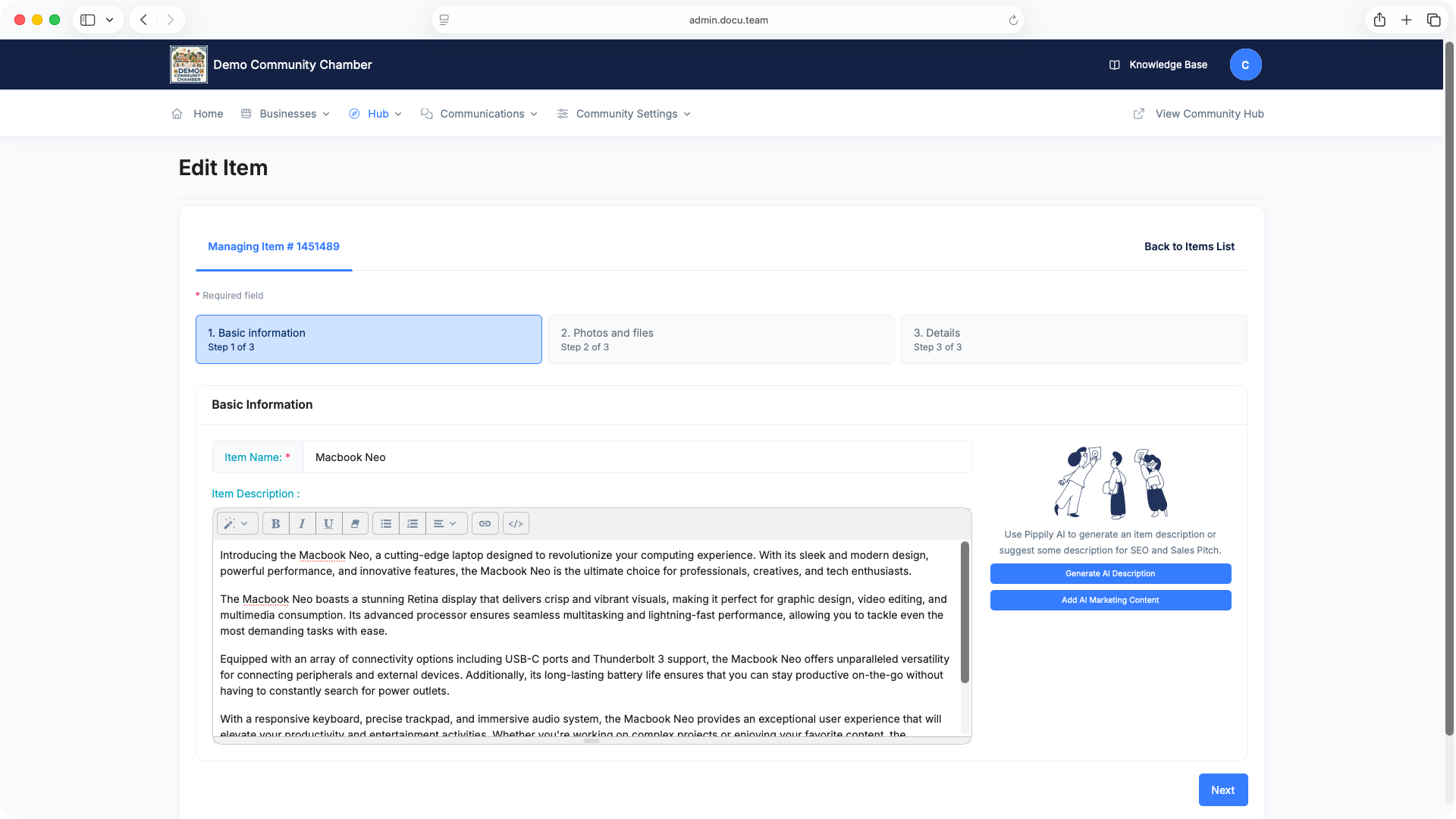
To add a marketplace item, go to Hub -> Marketplace Items -> Add New Item.
When adding a new item, the initial page will only ask you to provide the name of the item. Once you provide the name, click proceed. Below are the fields when adding an item.
- Item Name - The name of the product or service
- Item Description - Description of the Item
- Display Photos - Allows you to add photos for the item. The first in line will be used as the thumbnail for the item
- Display Files - Allows you to add a PDF file for the item
- Item Price - Price of the item to be displayed
- Item Category - A predefined list of categories
- Made in USA - Set to yes if item is made in the USA
- Use External URL? - Set this to Yes if you want to redirect the viewer to the "More Info URL" below where you might want to allow online purchase/order of the item
- Hide Item - Set to Yes if you want to hide the item temporarily
- Product or Service - Choose the right type of the item for filtering purposes in the marketplace
- More Information URL - Adding a url will add a link after the description of the item. If #8 is set to Yes, the user will be redirected automatically to this url
- Attributes - Enter one CSV row per option using this format:
Sample :
Name,Option,Price
Color,Blue,0
Color,Red,+5
Size,Large,+10
- Use the first column for the attribute name.
- Use the second column for the selectable option.
- Use
0for no price change, or+5/-2for an adjustment. - Add
!multiple,Color,before the Color rows to allow multiple selections.
You can use our AI assistant to generate item description or a marketing pitch.