
get started
Membership Management
Advertising network
Configuration
Last Update : August 2026
MemberLeap's event registration system has settings at two levels:
- Per-event configuration on each event's Advanced Options tab. These settings only affect the one event you're editing.
- Organization-wide configuration at the global Event Registration config page. These settings act as defaults across every event in your organization and control behaviors that apply org-wide.
This article explains where each lives, when to use which, and the favorites pattern that ties them together for everyday admin work.
Per-event configuration: Advanced Options
From the configuration editor, open the Advanced Options tab in the sidebar. This tab holds every fine-grained setting that doesn't fit on the other tabs. Settings are organized into expandable section cards: Common Options, Emails & Notifications, Miscellaneous Options, Access Restrictions, Cross-Reference & Prospects, and Invoice and Payment Options.
Some sections only appear if your organization has the related feature enabled. For example, the Projects & Communities card only shows up if your organization uses that feature.
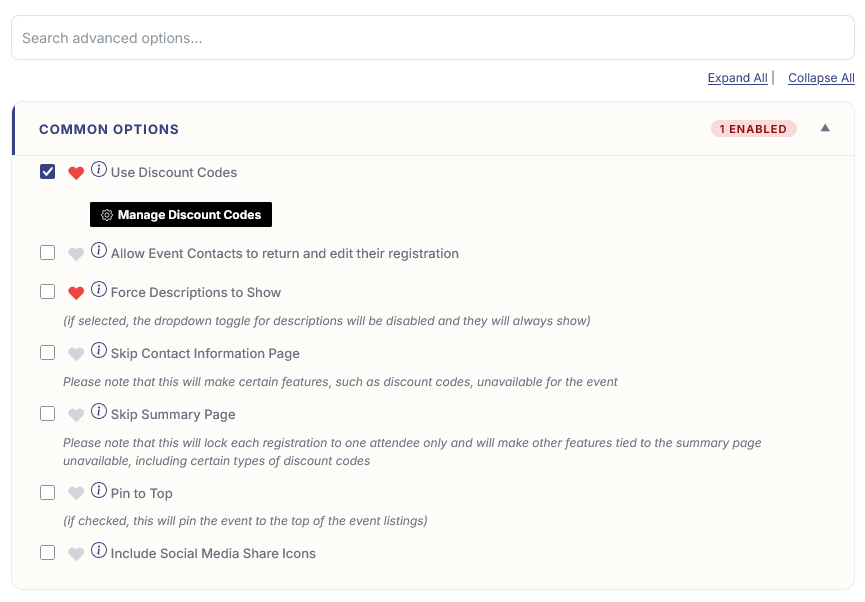
Most settings here are checkboxes or short text fields, and almost everything autosaves the moment you change it — you'll see a small "Saving..." pill in the bottom-right confirm. The search box at the top filters across all section cards in real time; type any setting name and irrelevant cards collapse out of view.
What's in each section
- Common Options. The settings most events touch — use discount codes, allow attendees to return and edit, force descriptions to show, enable file uploads, and other broadly-used toggles.
- Emails & Notifications. Confirmation email behavior (who gets it, what it says), admin alerts when new registrations come in, from-address overrides.
- Projects & Communities. Auto-link registrants to Communities or Projects based on the packages or fields they pick.
- Miscellaneous Options. A grab-bag of behavior toggles — preview mode, registration groups, sign-in agreements, certificate awards, and more.
- Access Restrictions. Lock the form down by membership status — Members Only Registration, Make Event Invitation Only, restrict to specific member types, board members only.
- Cross-Reference & Prospects. How registrations flow back into Member or Prospect records — matching, merging, and follow-up automation.
- Invoice and Payment Options. Payment methods accepted, partial-payment behavior, late fees, pay-by-check details, accounting overrides.
Favorites
Next to every setting on the Advanced Options tab is a small heart icon. Click it to favorite that setting. Favorited settings get pinned to a Favorites block at the top of the General Information tab on every event, so the handful you tweak most are always one click away instead of buried in Advanced Options.
The recommended workflow:
- Use Advanced Options for the initial event setup — visit every section card, configure the settings that matter for the event.
- Favorite the handful of settings you find yourself changing most often (e.g. the registration cutoff date, the confirmation email subject, capacity warnings).
- For subsequent edits, work from the Favorites block on the General Information tab without opening Advanced Options at all.
Favorites are saved per-organization and apply to every event your organization runs. Each user manages their own list independently.
Organization-wide configuration
The global Event Registration configuration page lives at Configuration > Event Registration in the main MemberLeap menu (the exact menu path depends on your organization's permission structure). Settings here apply across every event in your organization and act as defaults for new events you create.
You can also reach the global config from the breadcrumb action bar on most event-registration pages by clicking the Config icon (gear).
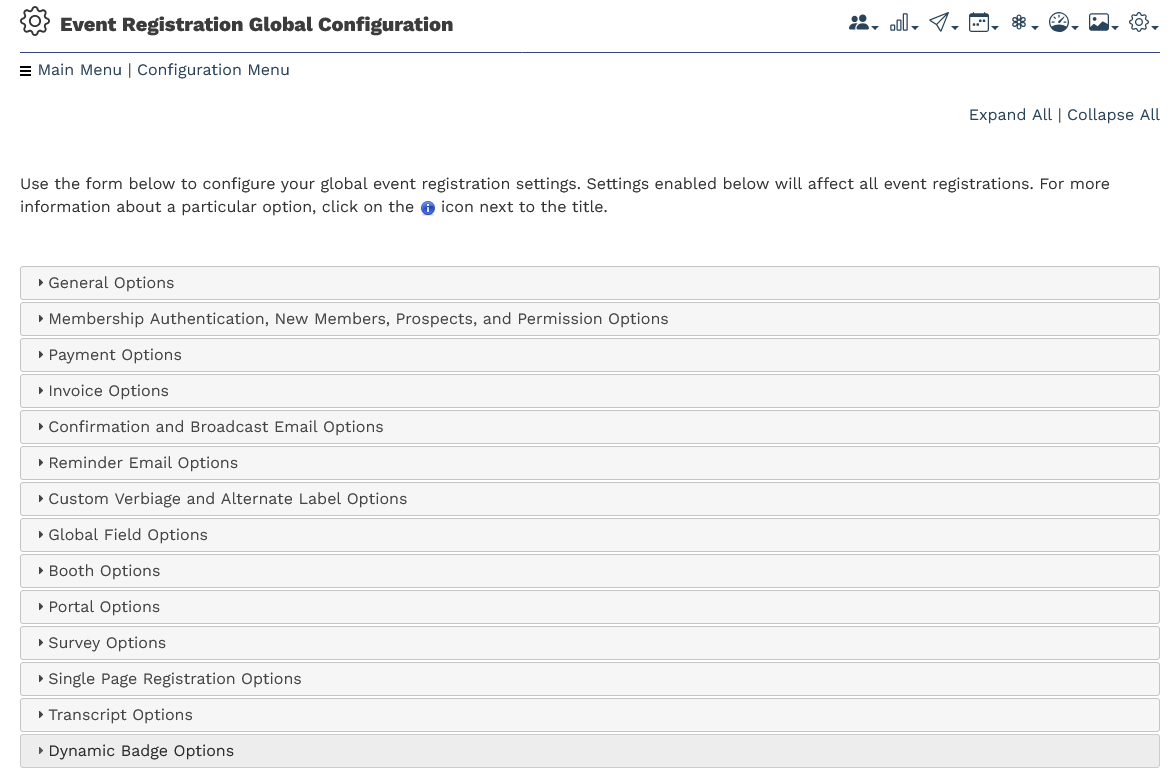
The page is organized into accordion sections you expand one at a time. Major sections include:
- General Options. Org-wide defaults for things like maximum-attendees limits, default registration confirmation behavior, and event-list display preferences.
- Membership Authentication, New Members, Prospects, and Permission Options. How members and guests are identified, what happens when a non-member registers, and which member types can do what.
- Payment Options. Which payment gateways are configured, accepted payment methods (credit card, check, ACH, PayPal, etc.), default payment behavior across all events.
- Invoice Options. Invoice numbering schemes, default invoice text, late-fee defaults, partial-payment rules.
- Confirmation and Broadcast Email Options. Default confirmation email text, broadcast send-time settings, default from-address.
- Reminder Email Options. Default reminder timing and content for events that use reminders.
- Custom Verbiage and Alternate Label Options. Org-wide text overrides for standard form labels. These act as defaults for every event; individual events can override them on their own Verbiage & Labels tab.
- Global Field Options. Org-wide defaults for the standard contact-info fields (which are required, which are hidden, etc.). Individual events override these via the Hide/Show/Require Core Attendee Fields block.
- Booth Options. Org-wide defaults for the booth-editor feature.
- Portal Options. Defaults for the Attendee Portal feature.
- Survey Options. Defaults for post-event surveys.
- Single Page Registration Options. Defaults for the single-page registration flow (an alternative to the multi-page flow).
- Transcript Options. Defaults for the transcript feature (when enabled).
- Dynamic Badge Options. Defaults for dynamic badge layouts.
Many sections only render when your organization has the underlying feature enabled. If you don't see a section listed above, it likely means the feature isn't turned on for your organization — contact MemberLeap support if you'd like to enable it.
Partial admin access
For more on giving specific staff members limited admin access to event registration without giving them full org-admin permissions, see Section: Partial Admin Access.