
New Title
Most settings here are checkboxes or short text fields, and almost everything autosaves the moment you change it — you'll see a small "Saving..." pill in the bottom-right confirm. The search box at the top filters across all section cards in real time; type any setting name and irrelevant cards collapse out of view.
What's in each section
- Common Options. The settings most events touch — use discount codes, allow attendees to return and edit, force descriptions to show, enable file uploads, and other broadly-used toggles.
- Emails & Notifications. Confirmation email behavior (who gets it, what it says), admin alerts when new registrations come in, from-address overrides.
- Projects & Communities. Auto-link registrants to Communities or Projects based on the packages or fields they pick.
- Miscellaneous Options. A grab-bag of behavior toggles — preview mode, registration groups, sign-in agreements, certificate awards, and more.
- Access Restrictions. Lock the form down by membership status — Members Only Registration, Make Event Invitation Only, restrict to specific member types, board members only.
- Cross-Reference & Prospects. How registrations flow back into Member or Prospect records — matching, merging, and follow-up automation.
- Invoice and Payment Options. Payment methods accepted, partial-payment behavior, late fees, pay-by-check details, accounting overrides.
Favorites
Next to every setting on the Advanced Options tab is a small heart icon. Click it to favorite that setting. Favorited settings get pinned to a Favorites block at the top of the General Information tab on every event, so the handful you tweak most are always one click away instead of buried in Advanced Options.
The recommended workflow:
- Use Advanced Options for the initial event setup — visit every section card, configure the settings that matter for the event.
- Favorite the handful of settings you find yourself changing most often (e.g. the registration cutoff date, the confirmation email subject, capacity warnings).
- For subsequent edits, work from the Favorites block on the General Information tab without opening Advanced Options at all.
Favorites are saved per-organization and apply to every event your organization runs. Each user manages their own list independently.
Organization-wide configuration
The global Event Registration configuration page lives at Configuration > Event Registration in the main MemberLeap menu (the exact menu path depends on your organization's permission structure). Settings here apply across every event in your organization and act as defaults for new events you create.
You can also reach the global config from the breadcrumb action bar on most event-registration pages by clicking the Config icon (gear).
get started
Membership Management
Advertising network
Auditing
Last Update : August 2026
Every change made to an event — the event configuration itself, packages, custom fields, field options, discount codes, booths, reminders, contacts, and attendees — is recorded in a per-event audit log. The log captures who made each change, when, and what the values were before and after. This gives you a complete history of how an event has evolved over time, and is the right tool when something looks unexpected and you need to figure out who changed what.
This article walks through opening the audit log, the categories it tracks, how to read individual entries, and how to use the date-filtered attendee view for narrower questions.
Opening the audit log
From the event list, click the
Event Hub link on an event's card, then click
Audit Log from the Admin Tools section of the hub.
What's tracked
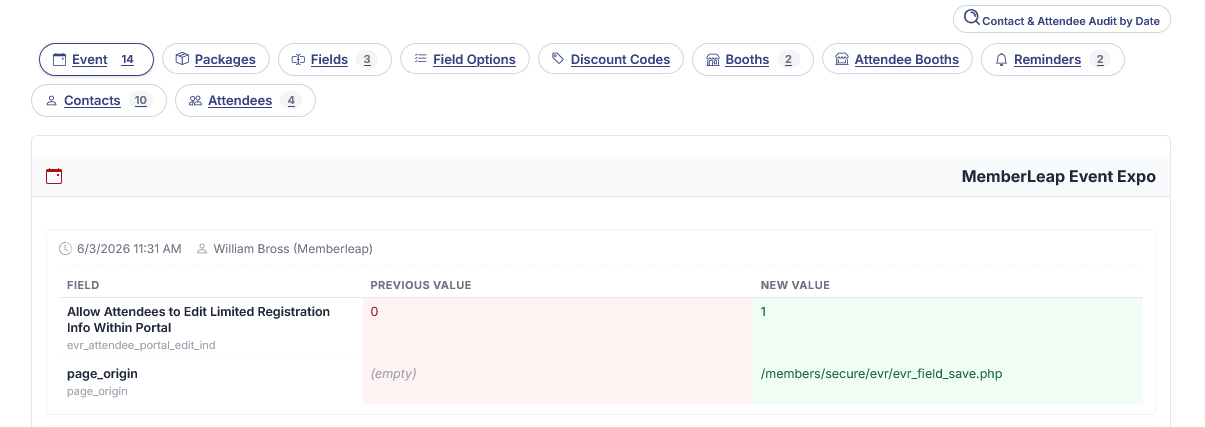
The log is organized into tabs, one per category of data MemberLeap audits. Each tab title carries a count chip showing how many entries that tab contains, so you can see at a glance where the activity is.
- Event. Changes to the event's own configuration — name, dates, location, advanced options, verbiage. This is where you'd look if someone says "I think the cutoff date got changed yesterday."
- Packages. Every change to every package on the event — price changes, capacity changes, restriction edits, additions, deletions.
- Fields. Custom-field changes — label edits, type changes, attendance-tracking toggles, additions, deletions.
- Field Options. Changes to the options under selection-type custom fields.
- Discount Codes. Every change to every discount code — rate adjustments, expiration date changes, eligibility filter edits, code additions, code deletions.
- Booths. Booth-editor changes — booth additions, deletions, moves, resizes, color changes, lock toggles.
- Attendee Booths. Booth assignment activity — which attendee claimed which booth, when, and any subsequent edits.
- Reminders. Changes to scheduled reminders — subject edits, schedule changes, recipient filter changes, additions, deletions, status flips between Active and Pending.
- Contacts. Edits to contact records on the event — name, email, address, package picks, notes, voids.
- Attendees. Edits to individual attendee records — check-in toggles, custom-field answer changes, package changes, restricted-field edits.
Click any tab to see the entries for that category. Tabs with no entries show no count chip; tabs you don't have permission to see (because the underlying feature isn't enabled for your org) won't appear at all.
Reading an audit entry
Each entry on a tab is one change. The entry shows:
- Who made the change — the member's name. Changes made by MemberLeap support staff are tagged with "(Memberleap)" so you can distinguish internal support actions from your own team's actions.
- When the change was made — date and time, in your organization's timezone.
- What changed — a before/after diff table showing the fields that were modified, with the old value on one side and the new value on the other.
Entries are grouped under the parent record they affect — e.g. package changes are nested under the package they belong to, attendee changes are nested under the attendee they belong to. This way you can see "everything that's been done to this one package" in one place rather than scrolling through interleaved entries from every package.
The diff table only shows fields that actually changed. If only the price was edited, the diff shows just the price — not every other field on the package. This keeps entries scannable even for records with many fields.
What does and doesn't appear
The audit log captures every data change tracked by MemberLeap's audit class. This includes inserts (new records being created), updates (existing records being modified), and deletes (records being marked as inactive). The before/after diff for an insert shows an empty Before and a populated After; the diff for a delete shows the captured row as Before and the post-deletion state as After.
Some activities don't generate audit-log entries because they're operational rather than data-changing:
- Viewing reports or pages.
- Sending messages or running send-queue activity.
- Generating PDFs (invoices, receipts, badges, attendee summaries).
If you need to track who looked at what, the audit log isn't the right tool — it's specifically about data mutations.
Attendees by date
A separate view, Audit Log — Attendees by Date, narrows the attendee-side activity to a specific date range. Use it when you have a question like "what changed on the attendee list yesterday between 9am and noon?" The main Audit Log is the right tool for browsing all changes by category; the date-filtered view is the right tool for slicing by time.
The date-filtered view lives alongside the main log and is linked from the same Admin Tools section of the hub when your organization has it enabled.
Common questions the audit log answers
- "Who changed this attendee's package?" Open the Attendees tab and look for the entry on that attendee. The diff shows the old and new package; the entry header shows who made the change.
- "Did anyone touch this event's cutoff date this week?" Open the Event tab and look for entries from this week. The diff shows the old and new date if it was changed.
- "When did the price on this package change?" Open the Packages tab, find the package, and read the entries nested under it. Each price change appears in its own entry with the exact timestamp.
- "What changes were made by [admin name]?" Browse each tab and look at the "who" column. There's no built-in admin-name filter, but the data is all there for visual scanning. For larger orgs with high activity, the database underneath the audit log can be queried directly.
Tips and patterns
- Use the audit log before assuming a bug. If a setting looks wrong, the first question is "did someone change it?" The audit log answers that immediately for any tracked field.
- The log is read-only. You can't edit or delete audit entries from the interface. This is by design — the audit log's value comes from being a tamper-resistant record of history.
- Don't rely on the audit log for accounting. Payment and invoice transactions are tracked through the financial ledger (separate from the audit log). The audit log captures changes to data; the ledger captures financial flow. Use the right tool for the question.
- The log grows with the event. Long-running or heavily-edited events accumulate a lot of entries. Tabs are scrollable, and each entry is dated, so even years of activity stay searchable by category and timestamp..