
get started
Membership Management
Advertising network
Event Registration - Partial Admin Access
Last Update : August 2026
Most organizations want a few people who can manage event registration without giving them full administrative access to the entire MemberLeap system. A board member who's running the annual gala. A staffer responsible for the membership meeting. A volunteer captain organizing a golf tournament. They each need to see attendees, edit registrations, and pull reports for their event without being able to touch other events or other MemberLeap features.
MemberLeap supports this with three different access levels. Each one strikes a different balance between flexibility and restriction. This article walks through what each one gives the user, when to use which, and where to configure them.
The three access levels
1. Event Reg. Admin
Granted by checking the Event Reg. Admin permission on a member's record. Full event-registration admins can do everything related to event registration:
- See every event in the event list, regardless of who created it.
- Create new events from scratch, templates, or by cloning existing events.
- Edit, copy, void, and delete any event.
- Manage attendees, payments, and refunds on any event.
- Run any report on any event.
- Manage the organization-wide event-registration configuration.
- Assign other people as Event Admins.
This is the right level for staff whose primary job is event registration — conference coordinators, event managers, registrar-type roles. They effectively have the full keys to the EVR module without needing super-admin permissions to the rest of MemberLeap.
2. Event Reg. Limited
Granted by checking the Event Reg. Limited permission on a member's record. Limited admins have most of the same access as full admins, with one important restriction: they can only edit, copy, or delete events that aren't yet available to the public.
This permission is mutually exclusive with Event Reg. Admin — a member can have one or the other, but not both. The permission checkbox notes this directly on the member record.
In practice this means a Limited admin can:
- See every event in the event list.
- Create new events.
- Fully edit, copy, and delete events while they're Disabled (still being set up).
- Manage attendees, payments, and reports on any event — including live ones.
What they cannot do:
- Edit or delete an event once its Registration Available status is anything other than Disabled.
This level is designed for staff who set events up but shouldn't be able to accidentally make destructive changes to live events. They can configure new events freely, but once the event goes live, the configuration is locked from their perspective — a full admin has to handle further changes to event configuration.
3. Per-Event Admin
Granted on a per-event basis through the Event Admins tool on each event's hub. A per-event admin sees only the events they've been assigned to, and only has access to those events.
What a per-event admin can do:
- See only the events they've been assigned to in the event list. Every other event is hidden from them.
- Manage attendees, payments, and reports for their assigned events.
- Access the Event Hub, attendees, messages, reminders, surveys, and reports for those events.
What they cannot do:
- See or access events they haven't been assigned to.
- Assign other people as event admins (this stays with full admins).
- Access the organization-wide event-registration configuration.
- Touch any other MemberLeap feature outside event registration.
This is the right level for chairpersons, committee leads, volunteer captains, or anyone who only needs to run one or two specific events.
Setting up access
The first two levels (Event Reg. Admin and Event Reg. Limited) are granted on a member's record by an organization administrator. Open the member record, navigate to the permissions section, and check the relevant permission box. Remember that the two are mutually exclusive — pick one.
Per-event admin access is granted through the Event Hub.
- From the event list, click the Event Hub link on the event's card.
- In the Admin Tools section of the hub, click Event Admins.
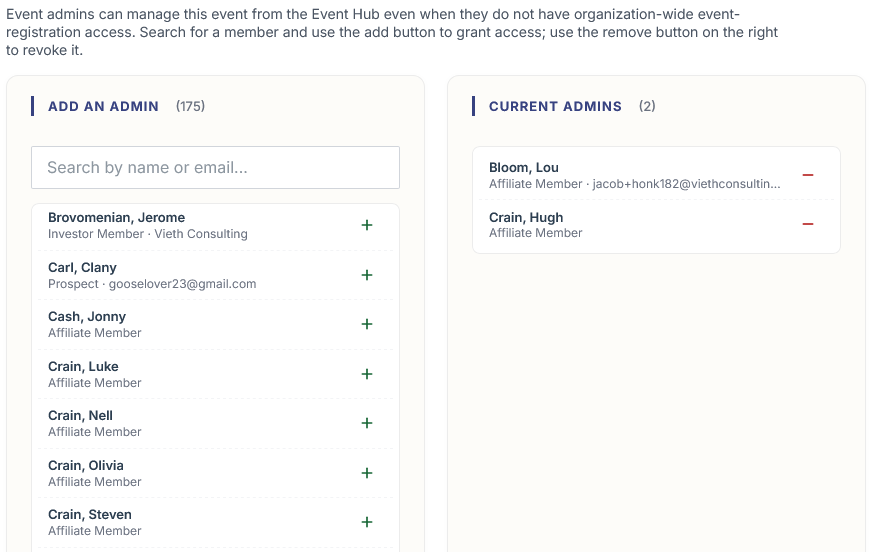
- The Event Admins panel opens in a slide-out. It has two cards: a list of members who already have access on the left, and a search-driven picker for adding new admins on the right.
- Search for the member you want to add by name or email. Click Add next to their record.
- To remove someone's per-event admin access, click the
Remove button next to their entry in the left card.
Members must already exist in your organization's member database to be assigned as event admins. If the person you want to add isn't a member yet, create their member record first using the normal Add Member process.
How the levels combine
A member can be assigned as a per-event admin in addition to either of the two member-level permissions, since the two member-level permissions are mutually exclusive but per-event assignment is independent. For example, a member with Event Reg. Limited can also be assigned as a per-event admin on specific events, but it wouldn't add anything — the Limited permission already gives them access to every event. The combination matters more for fully-restricted members: someone with no member-level event permissions only sees events they're assigned to as per-event admins.
Picking the right level
A quick decision guide:
- If the person needs to manage any event your org runs and configure the system itself — use Event Reg. Admin.
- If the person sets events up but shouldn't accidentally edit live ones — use Event Reg. Limited.
- If the person only needs to manage one or two specific events — use Per-Event Admin.
When in doubt, start with per-event admin access and add broader permissions later if the person's responsibilities grow. It's much easier to expand access than to take it away and explain why.