
The Editor
The Website Content Manager Editor page has quite a few options. Not every option will be available to all of our organizations. Items in green signify options that require additional programming for your organization, and may not currently be in use on your site.
Name
Title of the page you are editing.
Hidden
Checking the box marked Hidden will hide the page or link you're working on from the navigation system. This is very useful for pages that are parts of other pages, OR are subordinate to other pages - If you want visitors to visit the Members 2 page only after visiting the Members 1 page, you can hide Members 2 from the navigation system and put a direct link on Members 1.
Parent
Selecting a parent page will place the page you're working on below the parent page in the navigation system. By default, our menus only have two tiers, but this can be changed if necessary. Before emailing service to change your number of menu tiers, please consider that the more tiers of menu options there are, the more confusion your visitors will experience.
Sidebars
One of our newest features not yet available for everyone is sidebars. If your site takes advantage of Dynamic Sidebars, you'll have the option to select which content page you'd like to use as a sidebar on this page.
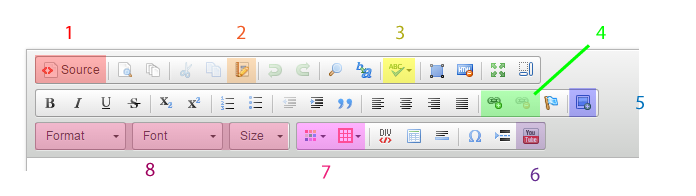
- Source - Clicking on the Source button in the editor will change your view from a friendly editor to the direct code view. If you have a code snippet from a third-party page, you would want to toggle the Source button before pasting the code.
- Paste as Plain Text - Use the Paste as Plain Text to bring over copy written in another editor like Microsoft Word or Libre Office. The Paste as Plain Text option removes any formatting that word processors add to text, allowing it to be posted online
- Spell Check - It's 2015, and we can all admit we use it. Turn on the traditional spell check that runs through your document, or SCAYT (Spell Check As You Type) for the red lines under misspelled words.
- Link and Unlink - Outline a word, phrase, or even an image and click the Link button. This will bring up a link dialog box. Enter the URL in the appropriate field and press OK to add links to anywhere on the internet. The Unlink button on the right allows you to remove selected links.
- Images - When adding images, it's always important to upload the image first. To do this, place your cursor where you would like the image to appear. Click the image button, and when the dialog window comes up, click on the Upload tab. Select the photo from your computer and press OK!
- Youtube Video - Adding a video to your page has never been easier! Find the video you'd like to share on Youtube and copy the URL. Click the Youtube button in our editor to bring up the dialog. Paste the URL to the Youtube video in the box provided and press OK.
- Font and Background Colors - To change the font color (left button) or text background color (right button), out line the text you'd like to affect and press the appropriate button. Select the color from the list, or choose your own and press OK.
- Font Format, Face, and Size - The font Format button allows you to select normal text or a heading 1-6. The lower the heading number, the larger it will appear on the page. The selectable Font list is currently limited to web-safe fonts. The Size list allows you to modify the size of your text.